Introduction
In the previous three parts of our series, we deviated slightly from the main line of development, devoting our efforts to creating auxiliary tools that will be useful to us in one way or another in the future.
Part 28: Expanded the capital management features of our multi-currency Expert Advisor (EA) by developing and implementing a new software module — the closing manager. It allowed tracking total profit or loss relative to a dynamically updated base balance and restarting all trading strategies when set values were reached. Future plans included expanding its functionality by adding the ability to trail total profits and move the entire set of open positions to breakeven.
Part 27: Created another component — a dialog occupying the entire terminal chart area, capable of displaying multi-line text with flexible font settings and scrolling support. This tool made information visualization more convenient and clear, and we added it to the Adwizard library as a tool for displaying various types of EA runtime information.
In general, we consolidated our previously adopted approach: a clear division of all program code into a library part (Adwizard repository) and the project part (SimpleCandles and SymbolsInformer repositories).
Now, let's return to the results obtained in Part 25. There, we reached a major milestone in developing our multi-currency EA by completing a universal automatic optimization system and successfully integrating the new SimpleCandles trading strategy into it. The entire process—from creating an optimization project in the database and launching multi-stage optimization on a cluster of agents to generating a ready-to-use final EA—was fully automated.
However, since the publication of that article, we have encountered several difficulties and inconveniences. This is completely normal for a first iteration. Let's explore key improvements that will make automatic optimization significantly more effective.

Mapping Out the Path
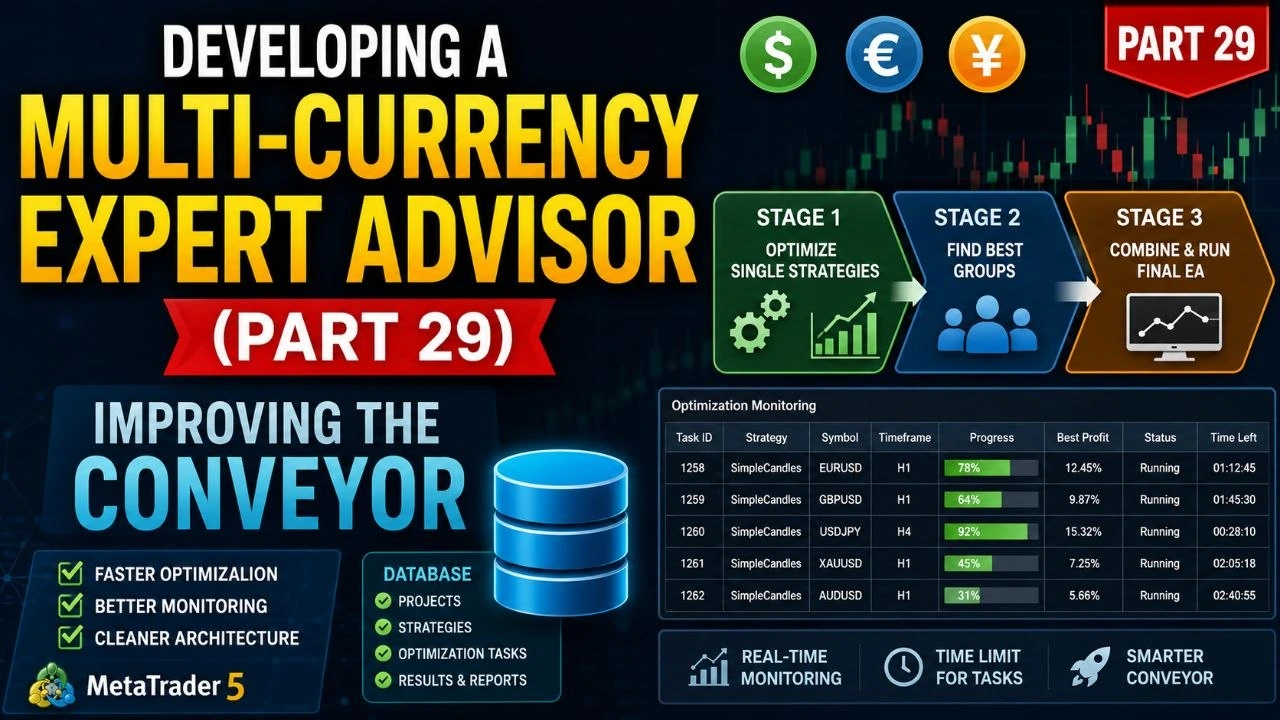
Let's recall the essence of our proposed conveyor for building the final trading EA:
First Stage: Conduct multiple optimization processes of one trading strategy for different symbols, timeframes, and parameters in the MetaTrader 5 strategy tester. We select the best single instances of the trading strategy for each symbol.
Second Stage: Conduct optimization to identify the best groups from a small number of single instances. We narrow thousands of copies down to a group of 8-16 pieces per symbol that show optimal cooperative results.
Third Stage: Combine these best groups for loading and execution in the final EA.

Current Bottlenecks & Solutions
Dependency Slippage: After finishing testing one strategy and moving to a new one, we discovered that despite code separation, minor connections remained between the library and project parts. We need to eliminate them.
Long Optimization Tasks: Optimization tasks can run for a very long time depending on the historical interval (e.g., 5 years vs. 3 months). Since genetic optimization often finds good parameter combinations early, we can reduce overall conveyor time by adding a time limit for completing each optimization task.
Monitoring Improvements: We need more detailed real-time monitoring information displayed during the optimization process rather than just a basic task ID.
Creating a Database
First, clone the two required repositories (
Adwizardlibrary and your project repository) toMQL5/Shared Projects. You can use theSimpleCandlesrepository as a template if you want to implement your own custom trading strategies.Setting Up the Project Creator
When both repositories are in the terminal working folder at
MQL5/Shared Projects:Compile the EA file:
SimpleCandles/Optimization/CreateProject.mq5.Drag the compiled version onto any chart.
Switch to the Inputs tab.
To avoid changing the database name manually every time, update the default value directly in the source file:
Code snippet//+------------------------------------------------------------------+ //| Inputs | //+------------------------------------------------------------------+ sinput group "::: Database" sinput string fileName_ = "article.17607.db.sqlite"; // - Optimization database file sinput group "::: Project parameters - Basic" sinput string projectName_ = "SimpleCandles"; // - Name sinput string projectVersion_ = "1.00"; // - Version sinput string symbols_ = "GBPUSD,EURUSD,EURGBP"; // - Symbols sinput string timeframes_ = "H1,M30"; // - TimeframesDatabase Structure
Running this EA creates an SQLite database file containing:
projectstable: Configuration parameters for the auto-optimization project.stagestable: Individual stages of optimization.jobstable: Specific jobs assigned to stages.taskstable: Individual optimization tasks currently set toQueuedstatus.
Launching the Optimization Conveyor
Compile the auto-optimization EA file
SimpleCandles/Optimization/Optimization.mq5and attach it to a chart.Decoupling Default Parameters
Previously, changing default file names required editing the library section. To make projects completely independent, modify the project file to define constants before including the library:
Code snippet// Constants with default parameters for the project: // - File with the main database #define OPT_FILEMNAME "article.17607.db.sqlite" // - Path to the Python interpreter #define OPT_PYTHONPATH "C:\\Python\\Python312\\python.exe" #include "../../Adwizard/Experts/Optimization.mqh"In the library section (
Adwizard/Experts/Optimization.mqh), handle these definitions dynamically:Code snippet// Create constants for default parameters, if they are not defined in the project part #ifndef OPT_FILEMNAME #define OPT_FILEMNAME "" #endif #ifndef OPT_PYTHONPATH #define OPT_PYTHONPATH "" #endif sinput string fileName_ = OPT_FILEMNAME; // - File with the main databasesinput string pythonPath_ = OPT_PYTHONPATH; // - Path to the Python interprete
Limiting Task Completion Time
To prevent tasks from hanging indefinitely, we will add a maximum execution time limit. This requires updates across the project inputs, the database schema, and the library classes.
1. Update Project Inputs
Add duration limits for stages 1 and 2 in
SimpleCandles/Optimization/CreateProject.mq5:Code snippetsinput group "::: Stage 1. Search" sinput string stage1ExpertName_ = "Stage1.ex5"; // - Stage EA sinput string stage1Criterions_ = "6,6,6"; // - Optimization criteria sinput long stage1MaxDuration_ = 20; // - Max duration of tasks (s) sinput group "::: Stage 2. Grouping" sinput string stage2ExpertName_ = "Stage2.ex5"; // - Stage EA sinput string stage2Criterion_ = "6"; // - Optimization criterion sinput long stage2MaxDuration_ = 20; // - Max duration of tasks (s)2. Update Database Schema
Add a
max_durationcolumn to thetaskstable indb.opt.schema.sql:SQL-- Table: tasks DROP TABLE IF EXISTS tasks; CREATE TABLE tasks ( id_task INTEGER PRIMARY KEY AUTOINCREMENT, id_job INTEGER NOT NULL REFERENCES jobs (id_job) ON DELETE CASCADE ON UPDATE CASCADE, optimization_criterion INTEGER DEFAULT (7) NOT NULL, start_date DATETIME, finish_date DATETIME, max_duration INTEGER NOT NULL DEFAULT 0, status TEXT NOT NULL DEFAULT Queued CHECK (status IN ('Queued', 'Process', 'Done') ) );
3. Update Library Classes (
COptimizerTask)In
Adwizard/Optimization/OptimizerTask.mqh, addmax_durationto the parameter struct and database queries:Code snippetstruct params { string expert; int optimization; string from_date; string to_date; int forward_mode; string forward_date; double deposit; string symbol; string period; string tester_inputs; ulong id_task; int optimization_criterion; long max_duration; } m_params;Update
IsDone()to check if execution time exceeds the limit:Code snippet// If the tester is running and maximum duration is specified if(!res && m_params.max_duration > 0) { string query = StringFormat("SELECT unixepoch(datetime()) - unixepoch(start_date) AS duration" " FROM tasks" " WHERE id_task=%I64u;", m_id); DB::Connect(m_fileName); long duration = StringToInteger(DB::GetValue(query)); DB::Close(); if(duration > m_params.max_duration) { Stop(); // Stop the task } }Displaying Data During Optimization
Instead of relying on the basic
Comment()function, we now leverage the CConsoleDialog class to render an interactive, scrollable full-screen console interface.Initializing the Console Dialog
In
Adwizard/Experts/Optimization.mqh, initialize the dialog insideOnInit():Code snippet
Displaying Data During Optimization
Instead of relying on the basic
Comment()function, we now leverage theCConsoleDialogclass to render an interactive, scrollable full-screen console interface.Initializing the Console Dialog
In
Adwizard/Experts/Optimization.mqh, initialize the dialog insideOnInit():Code snippetHandling Events and Cleanup
Update timer, event handling, and deinitialization functions to maintain and clear the interface cleanly:
Code snippetvoid OnTimer() { optimizer.Process(); dialog.Text(optimizer.Text()); } void OnChartEvent(const int id, const long &lparam, const double &dparam, const string &sparam) { if(!!dialog && !IsStopped()) { dialog.ChartEvent(id, lparam, dparam, sparam); } } void OnDeinit(const int reason) { EventKillTimer(); if(!!optimizer) delete optimizer; if(!!dialog) { dialog.Destroy(); delete dialog; ChartRedraw(); } }